Getting Started
NostalgiApp is a native macOS launcher for retro games. It runs on macOS 13 Ventura or later and is a Universal Binary (Apple Silicon + Intel).
What’s new in 1.2.3.3
Sparkle offers 1.2.3.3 automatically (or use NostalgiApp → Check for Updates…).
| What | Where | Read more |
|---|---|---|
| The media service — box art, screenshots, title screens and game details for your ROMs, with your licence and no ScreenScraper account | Library → Get Pictures & Details from the Media Service, and during ROM import | Media service |
| Missing Media — the ROMs the media service had nothing for | Sidebar → Playlists | Media service |
| ROM import shows its artwork progress and covers appear while it runs | The progress pill at the bottom right | ScreenScraper |
| eXo’s soundtracks next to your own albums | Settings → Appearance → Music, then the sidebar’s Soundtracks | eXo’s soundtracks |
| Moving your collection to another drive — NostalgiApp offers to switch ROM and video folders to the new drive too | Library → Select Collection Folder…, Library → Check Folders on Other Drives… | Moving your collection |
| Title screens, back covers and spines — the 3D box uses the real back and spine | ROM import and Scrape Metadata | ScreenScraper |
New in 1.2.2
Sparkle offers 1.2.2 automatically (or use NostalgiApp → Check for Updates…). NostalgiApp also starts much faster with large libraries, especially from an external drive.
| What | Where | Read more |
|---|---|---|
| Collapse ROM sets — one entry per game across regions and revisions | Settings → General → Library | ROM sets |
| Multi-disc games as one entry | ROM import, or right-click → Combine Discs into One Entry… | Multi-disc games |
| Import from ES-DE | Library → Import from ES-DE… | ES-DE import |
| Compress ROMs to CHD, ZIP or 7z | Right-click → Compress… | Compressing ROMs |
| The right sound device for each DOS game — the version picker marks and selects it | Appears when you press Play | MT-32 & Sound Canvas |
| Wine + DOSBox ECE runs in NostalgiApp Wine | When you pick Wine + DOSBox ECE for a DOS game | ECE games |
New in 1.2.1
1.2.1 is a big update. If you already use NostalgiApp, Sparkle offers it automatically (or use NostalgiApp → Check for Updates…). Nothing in your library changes on its own — every new feature is opt-in or appears where it’s relevant. Here’s where to find each one:
| What | Where | Read more |
|---|---|---|
| Quick Start — the whole eXoDOS catalogue after a 40 MB download | Welcome screen, or Library → Getting Started… | Quick Start |
| eXo Media Pack reading room — magazines, books, catalogs and videos without unpacking 237 GB, or streamed if you don’t have the pack | Settings → Storage → eXo Media Pack | Reading room |
| German, Spanish and Polish versions of eXoDOS games | Settings → General → eXoDOS Language Packs | Language versions |
| Manual & Extras without installing the game | A game’s page | Manual & Extras |
| Saves kept on uninstall and a disk-usage page | Settings → Storage | Storage & saves |
| The ScummVM version eXo tested, and eXo’s version menu for games shipped in several versions | Appears when you press Play | ScummVM versions |
| NostalgiApp Wine — our own Windows runtime with DXVK for Direct3D 10/11 | Settings → Services → Stores → Windows Games | Windows runtimes |
| Windows game health check and a per-game Run With choice | A Windows game’s page | Health check |
| Windows-only Steam games, CrossOver bottles on any drive, and Ubisoft Connect | Your library, automatically | Windows Steam, Ubisoft Connect |
| Play on your TV with Moonlight | Settings → Streaming | Streaming |
| A faster List view with multi-selection | View → List | List view |
Start with Quick Start: 40 MB, about a minute, and all 7,600+ eXoDOS games are in your library with covers. Each game downloads the first time you press Play.
Installation
- Download NostalgiApp.dmg from the website.
- Open the DMG and drag NostalgiApp.app into your
/Applicationsfolder. - Eject the DMG and launch NostalgiApp from Applications or Spotlight.
The app is signed and notarized by Apple, so Gatekeeper will allow it to open without any workarounds.
First Launch & the Setup Wizard
The first time you open NostalgiApp, a setup wizard walks you through five steps:
- Welcome — introduction and what to expect.
- Dependencies — NostalgiApp bundles everything it needs (including the
aria2download manager used for eXoDOS torrents). This step shows a few optional niceties likewgetand a modern Bash — you can skip it entirely. No Homebrew installation required. - Emulators — NostalgiApp ships with DOSBox Staging, DOSBox-X, DREAMM, and 86Box bundled inside the app, so there's nothing to install for DOS, Windows 3.x/9x, LucasArts, or the 86Box platforms. ScummVM and MAME are downloaded on demand straight from nostalgi.app the first time you enable them (one click in Settings → Emulators — no Homebrew required). You only need a separate install for an external emulator like RetroArch.
- MT-32 Audio — optional ROMs for authentic Roland MT-32 synthesis in supported DOS games. Skip if you don't care about MT-32.
- Complete — you're in.
You can revisit the wizard any time via Settings → Emulators → Dependencies.
The welcome screen
On first launch NostalgiApp shows a welcome screen with one card per kind of game. None of them is required — your Steam, GOG, Epic, Mac App Store, Ubisoft Connect and CrossOver games show up on their own, and the card says how many it has already found. For DOS games, the eXo / DOS Collections card offers three ways in:
- Choose Folder… — you already have eXoDOS, eXoScummVM, eXoWin3x/9x or eXoDREAMM on disk.
- Quick Start (~40 MB) — no collection yet, and you want to start browsing right away. Details.
- Download Lite (~6 GB) — the eXo team’s own Lite edition via BitTorrent (includes every game’s artwork on disk).
Closed it too soon? Library → Getting Started… opens it again.
The Welcome Guide 1.2.3
Once your first collection has loaded, NostalgiApp offers a short guided tour of the window: the sidebar, search, the five views, a game’s page, music and TV Mode, one part at a time. Use ← / → or the Back and Next buttons, and Esc to stop. Take it again any time with Help → Welcome Guide.
Trial & License
Every new install begins a 14-day free trial automatically. No sign-up, no email. After the trial you'll need a license:
- Personal — €29.99, one-time, 1 Mac + 1 PC (the PC running NostalgiApp for Windows).
- Family — €59.99, one-time, 5 devices, Macs or PCs in any mix.
Purchases are handled by LemonSqueezy. You'll receive a license key by email; enter it in Settings → License and click Activate. Activations are tied to a hardware machine ID; if you move to a new machine and all your seats are in use, deactivate on the old one first (or contact support).
Once activated, NostalgiApp caches your license for 14 days and includes a 3-day grace period if the license server is unreachable. Day-to-day offline use is fine.
Importing eXoDOS
eXoDOS is the largest and best-curated DOS game collection in the world — 7,000+ games pre-configured with the correct emulator settings. NostalgiApp can download and set it up for you, or import an existing copy.
Quick Start: the whole catalogue in a minute 1.2.1
Quick Start is the fastest way to get eXoDOS. Instead of a 6 GB (Lite) or 649 GB (Full) download, NostalgiApp fetches a 40 MB catalogue from nostalgi.app — every game’s title, description, year, genre, publisher, rating and launch configuration, exactly as the eXo team published them — and builds a normal eXoDOS library from it. Nothing is simplified: when you play a game, it is the same game, with the same DOSBox settings, as in the full collection.
- On the welcome screen (or Library → Getting Started…) click Quick Start (~40 MB).
- Choose a folder. NostalgiApp creates an
eXoDOSfolder inside it; that’s where your games will be downloaded, so pick a drive with room to grow (an external drive is fine). - Wait a few seconds. The catalogue is downloaded, checked (SHA-256) and unpacked, and your library opens with all 7,600+ games.
Covers and screenshots load on demand from nostalgi.app as you scroll, and are cached on your Mac. Nearly every game has a box front, a title screen and a gameplay screenshot.
Playing a game works like a Lite collection: the first time you press Play (or Install), NostalgiApp downloads just that game’s archive from the eXoDOS torrent with its bundled aria2c, installs it and starts it. Most games are a few MB; big CD-ROM games can be several hundred MB. After that it plays straight from disk, offline.
Updates to the game list
When the eXo team adds games, we publish a new catalogue. NostalgiApp checks at most once a day and asks “A newer eXoDOS game list is available”. Choosing Update takes a few seconds: new games appear, installed games and your saves are untouched, and any edits you made to games in your library are kept.
Quick Start, Lite or Full?
| Quick Start | Lite | Full | |
|---|---|---|---|
| Download before you can browse | 40 MB | ~6 GB | 649 GB |
| Artwork | Streamed on demand, cached | On disk | On disk |
| Games | Downloaded when you play | Downloaded when you play | All on disk |
| Manuals, extras, soundtracks | On demand (Manual & Extras) | On demand | On disk |
| New eXo games | Offered automatically | New Lite release | New Full release |
You don’t need Quick Start — keep using your collection. Quick Start is for people without a copy, or for a second Mac where you don’t want the whole collection.
Option A: Download eXoDOS inside the app
NostalgiApp ships with the aria2c BitTorrent client bundled, so it can download the eXoDOS archive directly.
- Open Library → Add Collection… (or use the first-run prompt).
- Choose eXoDOS and pick Lite or Full.
- Lite — a few GB. Only metadata and scripts; games download on demand when you click "Play" for the first time.
- Full — 500+ GB. All games pre-extracted, no per-game download.
- Pick where to store the collection (an external drive is recommended for Full).
- Wait for the torrent to finish, then let the setup run. It extracts metadata archives, parses LaunchBox XML, and populates your library.
Option B: Import an existing copy
If you already have eXoDOS on disk (e.g. from the eXo team's downloads), point NostalgiApp at the collection root — the folder that contains eXoDOS/, Images/, Data/, and !dos/ inside it.
- Open Library → Add Collection…
- Choose Import existing folder.
- Select the collection root in Finder.
- NostalgiApp detects the collection type from the XML and runs any missing metadata extractions automatically.
eXo collections ship with Setup.bat for Windows. Don't run it. NostalgiApp handles setup natively using its own metadata extractor and launch engine.
Download on demand (Lite)
Lite collections store only a small index and download individual game archives as you launch them. Downloads are handled by bundled aria2c and pulled from the eXo project's mirrors. You'll see a progress dialog on first launch of each game; subsequent launches use the cached extraction.
eXoScummVM, eXoWin3x and eXoWin9x one game at a time 1.2.4
You don’t need to download a whole eXo collection to play its games. In Settings → General → Add a collection, the Not downloaded yet list shows every collection nostalgi.app has a game list for that your library doesn’t have yet: eXoScummVM (833 games), eXoWin3x (1,139) and eXoWin9x (665). Click Get and NostalgiApp adds that collection’s game list to your current library in a few seconds (a few MB), with artwork shown from nostalgi.app.
Each game then shows a Download button with its size. NostalgiApp fetches just that game from the eXo team’s torrent with its bundled aria2c and installs it next to your other games. The first Windows 9x game also brings the Windows 98 parts DOSBox-X needs (about 150 MB, once). ScummVM and Windows 3.x games need nothing extra.
Already downloaded a collection from eXo? Use Add a Downloaded Collection… in the same place (or Library → Add Collection…) to import the folder instead.
Manual & Extras on demand 1.2.1
In Lite and Quick Start libraries, a game’s manual, box scans, maps, soundtrack and extras live in a separate eXo archive. When that archive isn’t on your disk, the game’s page shows a Manual & Extras button: click it to download just that game’s extras (usually a few MB) without installing the game. They then appear in the game’s Manuals, Extras and soundtrack tabs, and the button disappears. Downloading the game itself fetches them too.
German, Spanish and Polish versions 1.2.1
The eXo team publishes language packs for eXoDOS: 648 German, 633 Spanish and 229 Polish versions of DOS games, including games that were only ever released in that language. NostalgiApp can add them to your library.
- Open Settings → General → eXoDOS Language Packs and turn on German (GLP), Spanish (SLP) and/or Polish (PLP). The library reloads (the first time takes up to a minute while each pack’s configurations are unpacked).
- Translated versions appear as variants of the English game, labelled e.g. DOS · DE, so your library doesn’t fill up with duplicates. Games that only exist in that language appear as games of their own.
- Pick the variant on the game’s page and press Download / Play. The files come from the language pack’s own torrent, on demand, just like English games.
Patch-only versions. Some translations are a small patch on top of the English game. NostalgiApp handles this for you: if the English game isn’t on disk yet, it downloads it first (“English base game: N%”), then the patch, then installs both. In Quick Start libraries, language versions use the English game’s cover when they don’t have their own.
Turning a pack off hides its versions again; anything you downloaded stays on disk.
Storage, uninstalling and your saves 1.2.1
Uninstalling keeps your saves. When you uninstall an eXo game (from its page, TV mode, a batch selection or Settings → Storage), NostalgiApp first compares the game folder with the original archive and copies every file you created or changed — saved games, high scores, settings — into eXo’s own !save folder (one zip per game, the same format eXo uses on Windows). Reinstall the game later and they’re put back automatically.
Settings → Storage shows what uses space:
- Disk Usage — NostalgiApp’s caches, downloaded emulators and runtimes, and your saves, with Clear… and Show buttons.
- Installed Games by Size — your largest installed games, each with an Uninstall button.
- Delete a game’s archive after installing it — saves space by removing the downloaded
.ziponce the game is extracted. Reinstalling downloads it again, and you stop seeding it to other eXo users. - eXo Media Pack — see the reading room.
A download that stays at 0% shows “Waiting for peers…”: the torrent is looking for people sharing that file. It usually starts within a minute.
Other eXo Collections
Beyond eXoDOS, NostalgiApp supports every major eXo pack:
| Collection | Emulator | How to add |
|---|---|---|
| eXoDOS | DOSBox Staging / DOSBox-X | In-app download or manual import |
| eXoScummVM | ScummVM (download on demand) | One game at a time (Settings → Add a collection) or import folder |
| eXoWin3x | DOSBox-X (bundled) | One game at a time (Settings → Add a collection) or import folder |
| eXoWin9x | DOSBox-X (bundled) | One game at a time (Settings → Add a collection) or import folder |
| eXoDREAMM | DREAMM (bundled) | Manual download — import folder |
| eXoAppleIIGS | MAME (download on demand) | Manual download — import folder |
Where to get the archives
The eXo project distributes every collection from www.retro-exo.com — each collection has its own page with the latest torrent links and mirrors. NostalgiApp cannot distribute these archives itself.
Adding a manual collection
- Download and extract the collection archive to any location (external drive recommended).
- In NostalgiApp, choose Library → Add Collection… → Import existing folder.
- Select the collection root (the folder containing
Data/Platforms/and theeXoXXX/games folder). - NostalgiApp detects the collection type and extracts any metadata archives.
Collection-specific notes
eXoWin9x
Windows 9x games use a per-year folder structure (e.g. eXoWin9x/1996/GameName.zip). NostalgiApp detects and extracts year archives automatically. Fullscreen and resolution settings are injected at launch; multi-disc mounts are preserved from the original scripts. Enabled in v1.0.8 Build 81 with permission from the eXo team.
eXoDREAMM
LucasArts classics (Monkey Island, Day of the Tentacle, etc.) run natively through DREAMM, which is bundled inside the app. Permission to bundle DREAMM granted by Aaron Giles.
eXoAppleIIGS
Uses MAME under the hood. NostalgiApp auto-extracts ROMs from the nested archive structure (utilAppleIIGS.zip → EXTIIGS.zip → apple2gs.zip) and patches a missing 344s0047.bin for MAME 0.286 compatibility. Press Esc to quit (the -ui_active flag is set so the emulated keyboard doesn't swallow it).
You can point NostalgiApp at one "master" folder and then Library → Add Collection… to merge additional ones. XML, images, and scripts are merged into the same library view.
eXoScummVM: the version eXo tested 1.2.1
The eXo team tests every eXoScummVM game with a specific ScummVM build, and a few games only work in an older or newer one. NostalgiApp reads eXo’s list and, when your ScummVM doesn’t match, asks before launching: “<Game> needs ScummVM 2.5.0”.
- Download ScummVM <version> fetches that exact version from nostalgi.app (official ScummVM builds, signed and notarized) and uses it for the games that need it. Your regular ScummVM stays as it is.
- Use Installed ScummVM tries your current one anyway.
Versions on offer: 2.5.0, 2.8.0 and 2026.1.0. Each is a one-time download.
Games shipped in several versions
Some eXoScummVM games come in several versions — The Secret of Monkey Island, Monkey Island 2, The Dig, Gabriel Knight, Flight of the Amazon Queen and others, as Amiga, Macintosh, DOS floppy, CD talkie or special music editions. Pressing Play shows eXo’s own menu (“Which version of <Game>?”); some choices lead to a second menu. Your last pick is remembered and pre-selected next time.
A handful of games are in eXo’s list for a ScummVM development build and aren’t supported by any official ScummVM yet (Ultima I, for example). NostalgiApp tells you “ScummVM can’t run <Game> yet” instead of opening an empty ScummVM window.
ROM Libraries
Besides eXo collections, NostalgiApp imports any folder of ROMs for 60+ platforms — NES, SNES, N64, Game Boy, GBA, DS, 3DS, Genesis, Saturn, Dreamcast, PS1, PS2, PSP, Neo Geo, Atari, Commodore, ZX Spectrum, and more.
Importing ROMs
- Choose File → Import ROMs… (or the Import button in the sidebar).
- Select the folder containing your ROM files. Subfolders are scanned recursively.
- NostalgiApp detects the platform from the file extension and filename. An MD5 hash is calculated for RetroAchievements matching.
- Review the detected platform per ROM; override any mistakes with the dropdown.
- Pictures and details. With a NostalgiApp licence, Pictures & details from NostalgiApp’s media service is on by default: box art, screenshots, title screens and descriptions, with no account or daily limit (details). Optionally tick Scrape with ScreenScraper too: it then looks up only the ROMs the media service didn’t cover.
- Click Import. Your ROM files stay exactly where they are — NostalgiApp only records their location and writes metadata and artwork into the collection folder.
The games are in your library as soon as the import finishes, so you can start playing straight away. Pictures and details are fetched in the background afterwards: a progress pill at the bottom right of the window shows how far it is (click it for details, or to cancel), and covers appear as they arrive.
Prefer a fully portable library? On the final import step choose Relative paths — if your ROMs live inside the collection folder, the whole folder can move to another drive or Mac without re-importing.
ROMs are never copied or moved, so keep them in any folder you like. If you relocate your ROMs later, right-click the platform in the sidebar and choose Set ROM Directory… to point NostalgiApp at the new location without re-importing.
ROM sets: one entry per game 1.2.2
Full ROM sets often hold several dumps of the same game — USA, Europe and Japan releases, revisions, betas. Turn on Settings → General → Library → Collapse ROM sets and choose your Preferred region: the library shows one entry per game, using the best dump for your region. The game’s page lists the other dumps; Use This Version picks one for that game. Nothing is deleted.
To import only one dump per game in the first place, tick Import one version per game in the import wizard.
Multi-disc games 1.2.2
With Combine multi-disc games into one entry ticked in the import wizard, a game’s discs become a single library entry backed by an .m3u playlist saved next to the discs (or in the collection’s M3U folder if that folder is read-only). For discs already in your library, select them, right-click and choose Combine Discs into One Entry… — Disc 1’s artwork and play history are kept, and RetroArch saves and save states are copied to the new entry. Change discs from RetroArch’s menu while playing.
Import from ES-DE 1.2.2
Coming from ES-DE (EmulationStation)? Choose Library → Import from ES-DE…. NostalgiApp finds your ES-DE folder, then imports each system’s games with their names, descriptions, ratings, release dates, favorites, play counts and last-played dates, plus the artwork, videos and manuals ES-DE downloaded. ES-DE’s own files are only read, never changed.
Compressing ROMs 1.2.2
Right-click one or more ROM games and choose Compress…. Disc games become CHD and cartridge games ZIP or 7z — formats their emulators open directly, so they launch the same way afterwards. Each new file is checked before the library switches to it, and the originals go to the Trash. CHD needs the free chdman tool; the window offers Download chdman the first time. Platforms whose emulators can’t read these formats (GameCube, Wii, PSP, DS, 3DS, Switch, arcade) are left alone.
BIOS Manager
Some consoles need BIOS files to run: PS1, Saturn, Dreamcast, Neo Geo, etc. Open Settings → Emulators → BIOS Manager to see a per-platform checklist of required BIOS files, their expected filenames, and where to place them. The manager auto-scans RetroArch's system/ directory.
For copyright reasons, NostalgiApp cannot ship BIOS files. Dump them from your own hardware or source them yourself.
More platforms and a Core menu per game 1.2.3.4
NostalgiApp also imports Amstrad GX4000, Commodore CDTV, Fairchild Channel F, Nintendo 64DD, Pokémon Mini, Sega CD 32X, Sega Pico, Watara Supervision, Mega Duck, Atomiswave, NAOMI, NAOMI 2, Sega Model 2, Sega Model 3, Sega System SP, MSX Turbo R, SAM Coupé and Nichibutsu My Vision. Most run in RetroArch; these use another emulator:
- Sega Model 2: MAME, like other arcade games (name the zips by their MAME set).
- Sega Model 3: Supermodel. NostalgiApp offers to download it the first time (Apple Silicon Macs). Keep the MAME-named zips, with any parent set, in one folder.
- MSX Turbo R: openMSX as a Panasonic FS-A1GT. Install openMSX from openmsx.org. Its Mac build isn’t notarized, so the first time right-click openMSX in Applications → Open. openMSX needs the FS-A1GT system ROMs in
~/.openMSX/share/systemroms. - SAM Coupé and Nichibutsu My Vision: MAME. Put
samcoupe.zipormyvision.zipnext to the games, or in~/Library/Application Support/NostalgiApp/MAME/roms.
Core menu. A ROM game’s page has a Core menu: the platform’s default, the RetroArch cores you have, other cores for that platform (downloaded when you pick one) and standalone emulators. The game’s pick wins over the platform’s.
BIOS files for the new platforms. These go in RetroArch’s system folder (~/Library/Application Support/RetroArch/system); the BIOS Manager checks them.
| Platform | Files | Folder |
|---|---|---|
| Commodore CDTV | kick34005.A500, kick34005.CDTV | system |
| Fairchild Channel F | sl31253.bin or sl31254.bin, sl90025.bin | system |
| Nintendo 64DD | IPL.n64 | system/Mupen64plus |
| Sega CD 32X | bios_CD_U.bin, bios_CD_E.bin, bios_CD_J.bin (your games’ region) | system |
| Atomiswave | awbios.zip (from MAME) | system/dc |
| NAOMI | naomi.zip (from MAME) | system/dc |
| NAOMI 2 | naomi2.zip (from MAME) | system/dc |
| Sega System SP | segasp.zip (from MAME) | system/dc |
| SAM Coupé | samcoupe.zip | next to the games, or NostalgiApp’s MAME roms folder |
| Nichibutsu My Vision | myvision.zip | next to the games, or NostalgiApp’s MAME roms folder |
| MSX Turbo R | Panasonic FS-A1GT system ROMs | ~/.openMSX/share/systemroms |
Pictures & details from the media service 1.2.3.3
With a NostalgiApp licence, NostalgiApp’s own media service gives your ROMs box art, gameplay screenshots, title screens and game details (description, genre, developer, publisher, year). You don’t need a ScreenScraper account, and there’s no daily limit.
- During ROM import it runs on its own for the new games (see Importing ROMs).
- For the games already in your library, choose Library → Get Pictures & Details from the Media Service, or the button in Settings → Services → Media Service. It looks up the ROMs that have no box art or no description yet.
- Look Up All ROMs Again (in Settings) looks up every ROM and replaces their details. Box art and screenshots you already have are always kept.
Games are recognised by their file name, by their title, for arcade games by their set (a clone uses its parent’s pictures), and for cartridge games by their checksum when the file has been renamed. BIOS files, fruit machines, and the computers and handhelds in a full MAME set are skipped: they aren’t games the service has pictures for.
Missing Media. The ROMs the service had nothing for are listed under Missing Media in the sidebar’s Smart Collections (from 1.2.3.4; it was in Playlists before). Right-click Missing Media → Scrape Missing Games with ScreenScraper… to try ScreenScraper for those (games that already have box art are skipped). Missing Media belongs to this Mac and isn’t synced.
Platforms the service doesn’t cover. SAM Coupé, Nichibutsu My Vision, MSX Turbo R, Mega Duck and Sega CD 32X have no pictures in the service. A run names any of these in your library and suggests Scrape Metadata (ScreenScraper) for them.
Settings → Services → Media Service shows the last run and, for each platform, how many ROMs have box art and details and how many weren’t found.
The pictures come from libretro-thumbnails, game details from IGDB.com, and game names and checksums from No-Intro. See Credits, which also explains how to ask for something to be removed.
ScreenScraper Metadata
NostalgiApp integrates with ScreenScraper.fr, a massive community database of game artwork and metadata.
- Create a free account at screenscraper.fr (optional but gives higher rate limits).
- Enter your credentials in Settings → Services → ScreenScraper.
- During ROM import, tick Scrape with ScreenScraper and choose the picture types. Or select games, right-click and choose Scrape Metadata.
ScreenScraper allows about one lookup per second on a free account, so expect a large library to take a while; the progress pill shows how far it is. Turning on Calculate CRC hashes for better matching in the import identifies each ROM by its checksum first, which finds far more games than the name alone.
Picture types. Screenshot is an in-game picture and Title Screen the game’s title screen; both show in the game’s gallery. Box Art (Back) also fetches the box’s spine: the 3D box then shows the real back and spine instead of a plain back and a spine with the game’s name.
Choose a match manually. When automatic scraping can't identify a game — common with oddly-named ROM files — right-click it and pick Choose Match…. Search ScreenScraper by name, see the candidates, and select the right one; NostalgiApp then downloads its artwork and metadata. Scraping a game that finds no confident match now opens this picker for you automatically.
Gameplay Videos
ScreenScraper can also supply a short gameplay video for many console and arcade games. Turn on Settings → Services → Download gameplay videos when scraping (off by default — videos can add up to several GB across a large library), then scrape as usual, or right-click a single game and choose Download Video. Videos then play on the game's detail page and in TV / Couch Mode.
Some scraped videos — mostly console games — store their audio in a format macOS can't play, so they seem to have no sound. NostalgiApp can repair them: open Settings → Services → Fix Silent Videos and click the button to re-encode just the audio across your whole video library. The video itself is copied untouched, so there's no quality loss, and already-working videos are skipped. To fix one video, right-click the game and choose Fix Video Audio. New downloads are repaired automatically, so you only need to run this once for videos you already had.
Game Stores & Windows Games
NostalgiApp brings the games you already own on the major PC stores into the same library as your eXo and ROM collections — and can even run Windows-only games. It works with your existing launchers rather than replacing them: it reads your installed games and launches them through Steam and Heroic, so your accounts, saves and downloads stay exactly where they are.
Steam
- Install and sign in to the Steam app. Your installed Steam games appear in the library automatically and launch through Steam.
- Your whole Steam library 1.2.3.1: the games you haven’t installed are listed too, including the games your Steam Family shares with you and free games. NostalgiApp reads them from Steam’s own files on your Mac — no sign-in, no key, and nothing is sent to Steam. A game that was just shared with you appears once Steam has started and shown its library.
- No Steam on this Mac? A free Steam Web API key from steamcommunity.com/dev/apikey, pasted in Settings → Stores, lists the games your own account owns. Your Steam profile’s game details must be set to Public for that list to load.
- Owned-but-uninstalled games show an Install button that opens Steam to download them.
- Store details 1.2.3: select a Steam game and its description, developer, publisher, genres, year, rating, screenshots and trailer fill in from its Steam store page. Anything you’ve set yourself is kept.
- Mac vs. Windows Steam games: Mac-native Steam titles install and launch through Mac Steam. Windows-only games go through a Windows copy of Steam running in CrossOver — see Windows-only Steam games below.
GOG & Epic
GOG and Epic libraries come from the Heroic Games Launcher. Install Heroic (brew install --cask heroic or from heroicgameslauncher.com) and sign in to your GOG/Epic accounts there — NostalgiApp picks up both your installed and owned games automatically and launches them through Heroic.
Epic without Heroic 1.2.3: in Settings → Stores → Epic Games Account, open Epic’s sign-in page, sign in, and paste the authorizationCode it shows. Your owned Epic games are listed and refreshed every few hours; they install and play through the Epic Games Launcher.
Mac App Store
Games installed from the Mac App Store are detected automatically. Games you previously installed on this Mac but have since removed are also surfaced, with a button to reinstall them from the App Store.
Games no store lists 1.2.3
Choose Library → Add Game… (⇧⌘N) and pick a Mac game (.app) or a Windows game (.exe) — an itch.io download, a DRM-free build, anything no store knows about. You can pick several at once.
- Mac games appear under Mac Games in the sidebar’s Stores section, with the app’s own icon, and open like any app.
- Windows games run through Wine (below).
- A game another store already lists is not added twice. Remove a game in Settings → Stores.
Windows games
NostalgiApp runs Windows games through Wine, the compatibility layer behind CrossOver and Apple’s Game Porting Toolkit. Each game you add runs in its own isolated Wine prefix.
- Add a game: Library → Add Game… (or Settings → Services → Stores → Windows Games → Add Game…) and point at its
.exe(GOG offline installers work too: install first, then add the game’s.exe). - Apple Silicon Macs need Rosetta for Wine; macOS offers to install it the first time.
Choosing a Windows runtime 1.2.1
NostalgiApp works with several Wine “runtimes” and picks the right one per game. You need at least one:
| Runtime | Best for | How to get it |
|---|---|---|
| NostalgiApp Wine (new) | Most games: DirectX 9 and older through Wine’s own renderer, DirectX 10/11 through DXVK (Vulkan → Metal via MoltenVK). Recommended. | Download NostalgiApp Wine (~340 MB) in Settings → Services → Stores → Windows Games. Free. |
| Game Porting Toolkit | DirectX 12 games (Apple’s D3DMetal) | In the same place (Download built-in Windows runtime, one-time, ~228 MB), or an existing Whisky/Heroic install |
| CrossOver | Anything the others can’t run; required for Windows Steam | Paid, from codeweavers.com; detected automatically |
With NostalgiApp Wine installed, games you add use it automatically, except DirectX 12 games, which go to a Game Porting Toolkit runtime. For DirectX 10/11 games NostalgiApp installs DXVK into that game’s own prefix only. NostalgiApp Wine is built from Wine Staging (LGPL) and DXVK-macOS (zlib); Remove NostalgiApp Wine deletes it again.
The health check 1.2.1
Before you play, NostalgiApp reads the game’s .exe and the DLLs next to it to learn whether it’s 32- or 64-bit, which graphics API it uses (Glide, DirectDraw, Direct3D 3–12, OpenGL, Vulkan) and whether it uses disc copy protection (SafeDisc, SecuROM, StarForce, LaserLock, TAGES). If something needs attention, a note appears on the game’s page, often with a one-click fix:
- Copy protection — these schemes rely on Windows drivers that Wine can’t provide, so the game usually won’t start. The GOG release or a no-CD version avoids it.
- The runtime doesn’t fit the game — e.g. an old 32-bit DirectX game on the Game Porting Toolkit, or a DirectX 12 game on NostalgiApp Wine. The note offers Use NostalgiApp Wine, Use CrossOver or a Game Porting Toolkit runtime.
- Old DirectDraw / Direct3D games get tips for the two classic problems: a tiny picture (turn off High Resolution Mode in CrossOver) and a black screen (emulate a virtual desktop, or turn off D3DMetal/DXVK).
To switch runtime yourself, open the game’s … menu → Run With. The choice is remembered per game.
Windows-only Steam games 1.2.1
Mac Steam refuses to install Windows-only games. NostalgiApp handles them through a Windows copy of Steam in CrossOver:
- Already use Windows Steam in CrossOver? Its installed games appear in your library automatically and launch through it — including bottles on other drives (NostalgiApp follows Finder aliases in CrossOver’s Bottles folder) and extra Steam library folders.
- Installing a Windows-only game from your owned Steam list: press Install. NostalgiApp checks the Steam store, sees the game is Windows-only and uses your Windows Steam. With more than one, it asks “Which Windows Steam should install <Game>?” once and remembers your answer.
- No Windows Steam yet, CrossOver installed: choose Set Up Windows Steam and NostalgiApp creates a “NostalgiApp” bottle, installs Steam into it and starts the game’s download. Sign in to Steam when it asks.
- No CrossOver: NostalgiApp explains that the game needs CrossOver and links to it. (Windows Steam’s own browser doesn’t run under the free runtimes today, so there’s no free route for Steam itself; the game’s own .exe may still run with NostalgiApp Wine if you copy it out.)
If the Steam store can’t be reached, NostalgiApp asks “Install <Game> with which Steam?” — choose Mac Steam or Windows Steam.
Ubisoft Connect 1.2.1
Games installed with the Windows Ubisoft Connect app in a CrossOver bottle (or any Wine prefix) appear in your library automatically under Ubisoft Connect. Play opens Ubisoft Connect in that bottle, which signs you in, handles the game’s DRM and starts it — the first time it may install some Windows components first. Turn the source off in Settings → Services → Stores → Show in Library. Covers aren’t available for Ubisoft games yet.
Good to know: games protected by kernel-level anti-cheat (many online shooters) cannot run under Wine at all. Your eXo and ROM collections are completely unaffected by any of this.
Emulators
NostalgiApp ships several emulators bundled inside the app, so everything works out of the box for eXo collections:
| Bundled Emulator | Used For |
|---|---|
| DOSBox Staging | eXoDOS (default) |
| DOSBox-X | eXoWin3x, eXoWin9x, advanced DOS |
| ScummVM | eXoScummVM |
| DREAMM | eXoDREAMM (LucasArts) |
| MAME | eXoAppleIIGS, arcade fallback |
| 86Box | Advanced PC emulation |
External emulators
For console and handheld platforms, NostalgiApp auto-detects these when installed:
RetroArch
General-purpose front-end for 40+ cores.
PCSX2
PlayStation 2.
Dolphin
GameCube and Wii.
RPCS3
PlayStation 3.
Ryujinx
Nintendo Switch.
Citra
Nintendo 3DS.
Install any of these via Homebrew or download from their websites. Paths are detected from standard locations; override manually in Settings → Emulators if needed.
RetroArch cores — updates and overrides
Open Settings → Emulators → Cores for two useful features:
- Core updates — a list of your installed cores with a Check button and an Update All button when updates are available. Two toggles control automatic behavior: Check for core updates automatically (on by default) and Install updates automatically (off by default — updates are discovered but not installed without your click).
- Platform Core Override — each platform has a default core (e.g. SNES →
snes9x_libretro), but you can override it per-platform from a disclosure list of all your installed cores. Useful if you prefer, say,bsnes_libretrofor SNES ormesen_libretrofor NES.
Per-game core override — for ROM games where you have two or more compatible cores installed, a Core picker appears next to the platform tag in the game detail view. This lets you pin a specific core for one game without changing the platform default — handy when, for example, an older arcade ROM only runs cleanly in mame2003_plus_libretro while you keep mame_libretro as the platform default. The picker stays hidden when only one compatible core is installed (nothing to choose between); install a second core from RetroArch's Online Updater first if you don't see it.
MT-32, General MIDI & Sound Canvas music (DOS games)
Some DOS games sound their best with a Roland MT-32 or a General MIDI / Sound Canvas device rather than plain SoundBlaster. NostalgiApp can emulate both, but each needs one supporting file that you supply once. There is no “point to my files” step — the app looks in fixed folders with exact filenames, so the naming and location below matter.
Roland MT-32 / CM-32L
- Open Settings → Emulators → Dependencies → MT-32 Audio and click Open Folder. This opens the one folder the app checks:
~/Library/Application Support/DOSBox Staging/mt32-roms/. - Copy your MT-32 ROM files loose into that folder — not inside a sub-folder. The filenames must be exactly
MT32_CONTROL.ROMandMT32_PCM.ROM(orCM32L_CONTROL.ROMandCM32L_PCM.ROMfor a CM-32L). - Quit and relaunch NostalgiApp. The MT-32 Audio row should now read Installed.
Which Roland module? Games were written for different models. About 180 games break on the original MT-32 and need a CM-32L (or a later MT-32), and about 90 use its extra sound effects. If you only have the original MT-32 ROMs, add CM-32L ROMs to the same folder — the CM-32L ROM Files row in Dependencies shows when they’re found, and the version picker tells you which games need them. Full eXoDOS collections already include both models, and NostalgiApp uses the original MT-32 for the games written for it (Monkey Island 2, Wing Commander, King’s Quest V and more).
General MIDI / Sound Canvas
The easy way: open Settings → Emulators → Dependencies → General MIDI Audio and click Install. NostalgiApp ships with a General MIDI SoundFont built in and sets it up for you — nothing to download.
Prefer your own SoundFont? Sound Canvas / General MIDI is rendered through a SoundFont (Sound Canvas ROM files won’t work here). Save yours as exactly SoundCanvas.sf2 in either of these — a file you place yourself takes priority over the built-in one:
~/Library/Application Support/DOSBox Staging/soundfonts/SoundCanvas.sf2(create thesoundfontsfolder if it isn’t there), or- your collection folder at
eXo/mt32/SoundCanvas.sf2.
There’s no audio switch in Settings. When a game supports more than one audio option, a version picker appears at launch — pick MT-32, Sound Canvas, or SoundBlaster there. The version whose music was made for that device is marked Recommended and selected for you, and the picker remembers what you chose last time. If the recommended device’s files above are missing, the picker says so and selects SoundBlaster instead; if you pick it anyway, the game runs but its music is silent.
DOSBox variant routing
Some eXoDOS games specify a preferred DOSBox flavour in dosbox.txt:
vanilla/staging→ DOSBox Staging (bundled, fast)x→ DOSBox-X (bundled, more compatibility)ece/ custom → you'll be prompted to pick Staging, DOSBox-X or Wine + DOSBox ECE
CRT effects
DOSBox Staging's default CRT shader can look fuzzy on modern displays. NostalgiApp disables it by default via glshader=none. Toggle in Settings → Emulators.
Per-game display settings
You can override the global display settings for a single game. Right-click a game and open Emulator Settings to set CRT filter, Fullscreen and Aspect correction to On, Off, or “Use Global Default” just for that title (in TV mode, use the game's Select menu). Choose Reset to Global Defaults to clear them. Your per-game settings sync across your Macs.
Playing Games
Version picker
Many classic games shipped in multiple flavours: CD vs Floppy, VGA vs EGA, MT-32 vs SoundBlaster, English vs German. When a game has variants, NostalgiApp shows a picker before launch. Variants are auto-detected from the title (e.g. "King's Quest VI (CD Version w/ MT-32)") and grouped by category — Media, Audio, Graphics, Language, Version. For DOS games the version with the right sound device is marked Recommended (see MT-32 & Sound Canvas), and the picker starts on the version you launched last time.
Self-healing game fixes
Sometimes the auto-detected executable is wrong (common with heavily-modded games). NostalgiApp handles this with a crowdsourced fix system:
- A game launches but does the wrong thing (wrong executable, no sound, etc.).
- Report "It didn't work" in the game detail view.
- NostalgiApp parses
run.batordosbox.conf's autoexec to propose the correct launch command. - It relaunches with the proposed fix; if you confirm it works, the fix is uploaded to the community server.
- All other users pull the fix on next app launch. Everyone benefits.
Fixes are stored per-variant so the "CD Version" fix doesn't interfere with the "Floppy Version".
Save states & cloud sync
Save states work per-emulator:
- RetroArch — F2/F4 for save/load state by default.
- DOSBox — in-game save files (extension varies per game).
- ScummVM — F5 opens the in-game save menu.
Sync with your NostalgiApp account 1.2.3.4
Your library data can also sync through your NostalgiApp account, which works between your Macs and your PCs running NostalgiApp for Windows (Linux will follow). In Settings → General → Sync, set Sync your library with to NostalgiApp account (Mac, Windows, Linux), then click Sign In with WorthyPunks…. Your browser opens; sign in to WorthyPunks and approve the device, checking that the code matches the one NostalgiApp shows. A NostalgiApp licence is needed.
It syncs favorites, play history, notes, ratings, progress, playlists and the changes you made to games’ details. Game saves sync too when you turn that on (see below). Game files, images and emulator settings are not synced. It syncs when NostalgiApp starts, when you come back to it, every 15 minutes and with Sync Now. Sign Out stops it on this Mac; Delete Synced Data… removes the copy on the server and keeps everything on this Mac. Your signed-in devices are listed in your WorthyPunks account settings, where you can remove one.
Choose either the account or iCloud: the setting picks one.
Sync your game saves 1.2.3.5 beta
With your library syncing through your NostalgiApp account, turn on Sync game saves (beta) in Settings → General → Sync. NostalgiApp then keeps these in step across your Macs and PCs (NostalgiApp for Windows 0.1.21 or later):
- eXo games — the files a game writes into its folder (saves, high scores, its own settings), never the game itself.
- RetroArch cartridge saves (
.srm,.savand the like). - RetroArch save states — every slot and the automatic state.
Saves sync when you stop playing and when NostalgiApp starts, never while a game runs. A game that isn’t installed on a device gets its saves once you install it there. Your account holds up to 1 GB of saves, and the last few versions of each are kept.
When a save changed on two devices before they synced, both are kept: Settings → Sync lists the game with a button for each side. Pick one on any device and the others follow on their next sync.
Save states and cores. A save state only loads in the RetroArch core that made it, so states are kept apart per core. When a state comes from a different version of its core, the game’s page shows a note, as it may not load.
Not synced yet: ScummVM saves and standalone emulators. iCloud’s copy of your saves pauses while this is on.
iCloud Sync
NostalgiApp can sync your library data and save games across every Mac signed into your Apple ID. Turn it on in Settings → General → iCloud Sync, then click Sync Now.
What syncs:
- Favorites, play counts, play time, last-played dates
- Notes and star ratings per game
- Progress markers (Playing, Beaten, Completed)
- Custom playlists you create
- ROM metadata edits (Genre, Publisher, Developer, etc.)
- Emulator save games — RetroArch states/saves, DOSBox Staging saves, ScummVM saves, Sierra SCI saves (e.g.
KQ6SG.001), and more (curated name/extension list:.sav,.state,.gam,.sg0–.sg9,.mcd, Sierra…SG.NNN, …)
NostalgiApp recognises save games by matching known save-file names and extensions. Coverage is broad, but a few older or unusual titles use naming we haven't catalogued yet — if one game's progress never appears in iCloud Drive → NostalgiApp → Documents/Saves while other games sync fine, its save files probably aren't recognised yet (they're not lost, just skipped for sync). Let us know the game's name and we'll add it in a quick update.
What doesn't sync (and why): your eXo collections, ROM files, scraped images, and emulator settings stay local — they're either too large or too device-specific to belong in iCloud. ScreenScraper-fetched metadata isn't synced either; it's reproducible by re-importing.
Two notes if you sync between Macs:
- Sync runs automatically at app launch, right after you exit a game (just that game's saves are uploaded), after local library changes (debounced 30 seconds), and when you click Sync Now. There's no continuous push between Macs — the second Mac sees changes the next time it syncs.
- Deletions don't propagate. If you remove a favorite or delete a custom playlist on Mac A, the cloud still has it, so it can re-appear on Mac B's next sync. Workaround: do the delete on both Macs.
Views & Appearance
NostalgiApp 1.0.9 brought a major visual refresh. You can browse your library several ways and tailor the whole look to your taste.
Library views
Switch views from the tabs at the top of the library:
- Grid — cover art in a responsive grid. Use the size control next to the tabs to make boxes Small, Medium or Large.
- List — a compact, sortable table.
- Coverflow — a 3D carousel. The focused cover shows in full colour while the rest fade to black & white, so your eye goes straight to the one in front.
- Shelf — your boxes stand upright on wooden shelves, like a real collection. It looks best on boxed platforms such as DOS, Amiga and ScummVM. The size control resizes the boxes here too.
- Timeline — browse by release year. A histogram along the bottom shows how many games shipped each year; drag the playhead or use the ‹ › arrows to move through the decades, and the main area shows that year’s games. A fun way to wander through gaming history.
3D box art. On Shelf and Coverflow, games without a ready-made 3D box get one generated from their own cover — so each edition shows its correct art instead of borrowing another version's. When a game has back-cover and spine pictures (ScreenScraper’s Box Art (Back), or your own through Library → Import Local Artwork…), the box uses them; otherwise the spine shows the game’s name.
List view 1.2.1
The List view is now a native macOS table, so it stays instant even with tens of thousands of games — searching, filtering and background store refreshes no longer slow it down. It supports the same selection as the grid: Cmd-click to add or remove games, Shift-click for a range, Cmd+A for everything, and a plain click to go back to one game. Right-click a selection to act on all selected games at once.
Museum Mode
Click the museum button (the columns icon) next to a game's title — or press ⌘⇧M — to open a full-screen exhibit for that game. It gathers everything NostalgiApp knows about the title in one place:
- A 3D box on a lit pedestal that slowly turns like a museum piece — drag to spin it and see the spine and back. (Games without a flat cover show their box art instead; tap to flip front/back.)
- The clear logo, a blurred backdrop, and any cart or disc artwork.
- A screenshot wall, the game's manual, and developer history (with a Wikipedia link).
- The linked soundtrack with a clickable track list — play any track right from the exhibit.
Press Esc or click Close (top-right) to leave Museum Mode.
The same rotatable 3D box is available from any game's details — click the 3D box button (the rotate icon) next to the title.
Tabbed game details
The detail panel on the right is now organised into tabs, so you see what you want without scrolling:
- Details — information, description and links.
- Extras — manuals, maps and bonus material (when available).
- Enhancements — RetroAchievements, shaders and cheats (ROM games).
- My Library — your rating, progress, play stats and notes.
Tabs only appear when they have something to show, and you can drag the divider to set the panel width — NostalgiApp remembers it.
Themes & backgrounds
Open Settings → Theme to personalise the look:
- Nocturne theme — a calm, near-black theme with a soft spotlight that lets your artwork shine. It joins Synthwave '84, Retro Purple, Ocean Blue, Forest Green and Midnight Glass.
- Dynamic game background — the window fills with a soft, blurred wash of the selected game's art, Steam-library style. On by default for dark themes.
- Platform accent colours — the interface subtly tints to match what you're browsing: amber for DOS, red for Nintendo, cyan for Sega, neon green for arcade and more. On by default.
Now playing
The music bar at the bottom now shows cover art for whatever's playing — the album cover for soundtracks, or the game's box art when you play a game's soundtrack.
TV / Couch Mode
TV mode turns NostalgiApp into a full-screen, controller-driven “big-picture” launcher — built for a television and a game controller from the sofa. It shows whatever your library is currently filtered to, so the platform, collection and playlist you pick on the desktop carry straight over. It starts on the game selected in the window, and when you leave, the window is on the game you were on.
Entering & leaving
- Press ⌘⇧T, click the TV button in the toolbar, or use View → Enter TV Mode.
- Plug in any supported game controller (Xbox, PlayStation, MFi). A keyboard also works — arrow keys, Return and Esc — so you can try it without a pad.
- To leave, press Select + Start together on the controller (or Esc on the keyboard).
Controls
- D-pad / left stick — move through the cover carousel (left/right steps one game; up/down jumps a page). The shoulder buttons cycle platforms; the triggers page quickly.
- A — play the focused game. B — go back / close the current overlay; on the main screen it swaps a game’s video for its screenshots.
- X — open What to Show. Y — toggle the game as a favourite.
- Start — open the on-screen search keyboard. Select — open the per-game options menu.
What to Show (X) 1.2.3
X opens a grid of everything your sidebar offers: All Games, Favorites, Recently Played, Installed, the smart collections, your playlists and eXo’s, your collections, the platforms and My Soundtracks. Each tile says what kind of list it is and how many games it holds; a dot marks the one you’re on. The heading at the top always says what you’re looking at, and the list you pick stays chosen when you go back to the desktop.
A game’s video and screenshots 1.2.3
The focused game’s gameplay video (or a Steam game’s trailer) plays in the middle of the screen. You control it like this:
| Do this | Controller | Keyboard |
|---|---|---|
| Swap the video for the screenshots, and back | B | V |
| Previous / next screenshot | Right stick left / right | [ / ] |
| Mute / unmute every video (remembered) | R3 (press the right stick) | M |
| Full screen, and back | L3 (press the left stick) | Z (Esc comes back) |
A muted video leaves your background music playing. A video already playing on the desktop pauses while TV Mode is open. Steam games use their store screenshots when your collection has no pictures of their own.
Sounds 1.2.3
TV Mode clicks as you move, chimes as you choose, and plays a short sound when it opens. The sounds come from the Big Box sound packs in your eXo collection’s Sounds folder (Classic, Multi-Sound and the Sci-Fi sets) — or, without one, NostalgiApp’s own. Choose the pack, turn them off, or set the volume in Settings → General → Controller / TV Mode.
Per-game options (Select)
The options menu gives you, for the focused game: Install / Uninstall, Play Fullscreen or Windowed, Choose Version, Favourite, Mark as Played, Add to Playlist (create a new one right there), Hide, Show in Library, per-game display settings (CRT / fullscreen / aspect), and Extras when the game has any.
Manuals, maps & documents
Choose Extras… from a game's options to read its manuals, maps and documents without leaving the couch. Images open in a full-screen viewer, PDFs page with the D-pad, and text files open in a reader. Press B to step back.
Soundtracks & My Soundtracks
A game's soundtrack plays quietly as you browse. Press A on a soundtrack to play it in full and open the transport controls — Play/Pause, Next, Previous and Stop, with the shoulder buttons skipping tracks. Open What to Show (X) and choose the My Soundtracks tile to browse and play the soundtracks you've imported.
On the TV
Games launch on the same screen as NostalgiApp, so on a second display or television everything stays where you're sitting. If a game exits, the app comes back to the front automatically.
Play on your TV, phone or Steam Deck 1.2.1
NostalgiApp can stream to another screen with the free Moonlight app (Apple TV, Android TV, iPhone, iPad, Android, Steam Deck, another computer). On the Mac, the free and open-source Sunshine does the streaming; Settings → Streaming sets it up for you:
- Install Sunshine — downloads the official build from LizardByte’s GitHub (about 40 MB), checks it and copies it to Applications. Then Start Sunshine.
- Create Sunshine Login — NostalgiApp creates Sunshine’s admin login and keeps it in your Keychain.
- Permissions — macOS must allow Sunshine Screen & System Audio Recording (to capture the screen), Local Network (so Moonlight finds the Mac) and Accessibility (keyboard and mouse from Moonlight). The page shows what’s missing and opens the right System Settings pane. After granting Screen Recording, click Restart Sunshine.
- Add NostalgiApp to Sunshine — adds a “NostalgiApp” tile to Moonlight.
- Pair — in Moonlight on your TV or device, pick this Mac (on the same network it appears by itself). Moonlight shows a 4-digit PIN; the pairing request appears under Pair a device — enter the PIN and click Pair.
Now pick the NostalgiApp tile in Moonlight: NostalgiApp switches to TV mode, full screen, and ending the stream leaves TV mode again.
Keyboard and mouse from Moonlight work right away. To use a game controller through Moonlight, macOS also needs LizardByte’s Virtual HID Broker, a separate licensed install — Sunshine can’t create a virtual gamepad on a Mac without it. The Streaming page tells you when it’s missing. A controller connected directly to the Mac always works.
Shortcut links: nostalgiapp://tv opens TV mode full screen and nostalgiapp://desktop leaves it — handy for Shortcuts, Stream Deck buttons or other launchers.
RetroAchievements
Earn achievements in retro games just like modern consoles, via the RetroAchievements.org community.
Connecting your account
- Create a free account at retroachievements.org.
- In your RA profile, go to Account → Preferences and copy your Web API Key.
- In NostalgiApp, open Settings → Services → Achievements.
- Enter your RA username and API key and click Connect.
Your profile card (points, rank, recent achievements) appears in Settings, and each game's detail view shows its achievement list once matched.
You also need to enable RetroAchievements inside RetroArch. NostalgiApp displays your progress and each game's achievement list, but the actual unlocking and uploading happens inside RetroArch while the game is running. Launch RetroArch, open Settings → Achievements, sign in with the same RetroAchievements account, and turn Enable Achievements on. Without this step you'll see the achievement list in NostalgiApp but nothing will ever unlock.
With Hardcore Mode on (RetroArch → Settings → Achievements), RetroArch won’t load save states: “You must pause or disable achievements hardcore mode to load state”. Turn it off there, or once you’re signed in, use the Quick Menu → Achievements → Pause Achievements Hardcore Mode for one session.
Hash matching
NostalgiApp calculates a platform-specific hash for each ROM to match it against RA's database. Supported directly: NES, SNES, Game Boy / GB Color, GBA, Genesis, Master System, Atari 2600 / 7800, Neo Geo Pocket, PCE, and more. Platforms with complex hashes (N64, DS, PS1, Saturn, Dreamcast, arcade) fall back to title matching, which is slightly less accurate.
Tracking progress
While a game is running, earned achievements are pulled from RA and displayed in real time. Progress is stored against your RA account — you'll see the same progress in the RetroAchievements website and in NostalgiApp.
Music Player
The eXo project publishes an eXo Media Pack with thousands of original game soundtracks. NostalgiApp plays them automatically as you browse.
Getting the Media Pack ready
NostalgiApp handles Media Pack setup the same way the eXo Windows Setup.bat does: during setup it scans your collection's Content/ folder for *Soundtracks.zip, *Videos.zip, *Catalogs.zip, *Magazines.zip and *Books.zip and extracts each one into the right place. The match is on the ending, so collection-specific archives are picked up too — DOSMagazines.zip, IFMagazines.zip, DOSBooks.zip and IFBooks.zip all qualify. Three common situations, three different steps:
Scenario 1 — You already have an inflated collection
If you're migrating a Windows library (or have an external drive where the Media Pack was already extracted), your collection's Music/ folder is already populated with game soundtracks. Nothing to do. Point NostalgiApp at the collection, enable background music in settings, and it plays.
Scenario 2 — Fresh install, Media Pack alongside the collection
- Download both the collection and the Media Pack from retro-exo.com.
- Drop the Media Pack archives (DOSSoundtracks.zip, optionally DOSVideos.zip / DOSCatalogs.zip / DOSMagazines.zip / DOSBooks.zip) into the collection's
Content/folder alongside the metadata zips. - Add the collection in NostalgiApp. First-time setup detects every archive in
Content/and extracts each one to the correct location. - Enable Settings → Appearance → Music → Enable background music.
Scenario 3 — You already set up the collection, Media Pack came later
As of 1.0.8.7.2 (Build 104), Media Pack extraction is an explicit action in Settings rather than an automatic prompt. This avoids a whole class of false positives where the app couldn't reliably tell an already-extracted pack from a fresh one.
- Download the Media Pack from retro-exo.com.
- Drop the archives (DOSSoundtracks.zip, DOSVideos.zip, DOSCatalogs.zip, DOSMagazines.zip, DOSBooks.zip, etc.) into your collection's
Content/folder. - Open Settings → Emulators → Dependencies → Collection Setup → Extract Media Packs and click Extract Now. (Dependencies is the second button in the segmented control at the top of the Emulators tab; scroll to the bottom of that page.) The app extracts every media-pack archive in
Content/into its correct location and writes a.<zipname>.extractedmarker next to each one so it's skipped on subsequent runs. - The Music / Videos / Catalogs / Magazines / Books folders are now populated. Music auto-plays on next game selection.
Each Media Pack zip gets a hidden .<zipname>.extracted marker file next to it once extraction finishes. On the next Extract Now run the app skips zips whose marker is present and newer than the archive, so you can safely re-run the action after dropping additional packs without re-extracting what's already done.
The reading room: no unpacking needed 1.2.1
The Media Pack’s magazines, books, catalogs and videos are huge — DOSMagazines.zip alone is 102 GB with almost 49,000 files. Since 1.2.1 you don’t have to extract them (Scenarios 2 and 3 above are still fine if you prefer). NostalgiApp can open each item straight from the zip, and if you don’t have the Media Pack at all it can stream single items from the Media Pack torrent.
- Open Settings → Storage → eXo Media Pack. It says either “On disk: N Media Pack archives” (the zips are in your collection’s
Content/folder) or “Not on disk. Items stream from the eXo Media Pack torrent when opened”. - Click Add Magazines, Books & Videos to the Library. NostalgiApp reads just the lists of ~2,000 magazines, books, catalogs and videos (about 7 MB) and your library reloads with the new sidebar entries: MS-DOS Magazines & Newsletters, MS-DOS Books, MS-DOS Catalogs and MS-DOS Videos.
- Open any item as usual. NostalgiApp takes only that item out of the zip (a 261 MB magazine takes about ten seconds) and opens it in your PDF viewer, video player or DOSBox. After that it opens instantly.
Streaming, when the zips aren’t on disk
NostalgiApp downloads the small rqbit BitTorrent engine (about 36 MB, checked, one time) and asks the Media Pack torrent for exactly the bytes of the item you opened — nothing else is downloaded, and nothing is shared beyond what you opened while NostalgiApp is running. A progress window shows “Streaming N MB from the Media Pack torrent — waiting for peers…”. Speed depends on how many people are sharing the Media Pack: a 70 MB magazine took under a minute in our tests, but it can take a few minutes when few people are online.
Streamed pieces are cached, so a second item from the same part of the pack is quicker. Settings → Storage → eXo Media Pack shows the size of that cache with a Clear button; items you already opened stay in your library.
Disk magazines like Big Blue Disk or cover CDs like PC Gamer CD run in DOSBox. NostalgiApp extracts the magazine and its disc images together, and tells you clearly if a disc image is missing.
Where magazines, books and videos show up
They are not genres. Once the relevant pack is extracted they appear as their own entries in the left sidebar, alongside MS-DOS:
- MS-DOS Magazines & Newsletters — from
DOSMagazines.zip - MS-DOS Books — from
DOSBooks.zip - MS-DOS Catalogs — from
DOSCatalogs.zip - MS-DOS Videos — from
DOSVideos.zip
Each of those sidebar entries is supplied by the pack itself rather than by the main metadata, which is why it only appears after that pack has been extracted. If a category is missing from the sidebar, either run Extract Now above or, quicker, Add Magazines, Books & Videos to the Library in the reading room — no extraction needed.
NostalgiApp never deletes the archives in Content/. Seeing DOSMagazines.zip still sitting there after a successful run is normal and is not a sign that extraction was skipped — check the sidebar, or look for the hidden .extracted marker beside the zip.
Supported audio formats: MP3, M4A, OGG, FLAC, WAV, AAC.
How autoplay works
- When you click a game — if that game has a matching soundtrack folder in the Media Pack, NostalgiApp starts playing it automatically. Switching games swaps the music.
- When no game is selected (e.g. idle on the library) — the player builds a random 20-track shuffle playlist from your whole Media Pack and plays it as ambient background music.
Matching is done by game title with a few sensible fallbacks (with/without year, "The" at the start, etc.), so most Media Pack layouts just work.
Using the player
A "Now Playing" card shows the current track with play/pause, next/previous, volume slider, and mute controls. Soundtrack ZIPs dropped into a game's Extras folder are auto-detected and extracted on demand — a separate feature from the Media Pack itself.
Imported Soundtracks (your own music)
The Media Pack is great, but maybe you've ripped a CD soundtrack, downloaded a fan remix, or own original game OSTs you'd rather use. NostalgiApp ships with a dedicated Soundtracks library for music you bring yourself — added in 1.0.8.8.6.
Importing an album
- Open the Soundtracks entry in the sidebar (next to Statistics).
- Click Import Soundtrack… (or use Library → Import Soundtrack…).
- Pick a folder of music files. NostalgiApp keeps a reference to the folder — your files stay where they are, never copied or moved.
- Optional: pick a cover image. If you skip it, NostalgiApp peeks at the audio metadata (ID3, iTunes-style, FLAC) and auto-fills the cover from any embedded artwork it finds.
Multi-disc albums
Many soundtracks ship across discs (Disc 1 — Field Music, Disc 2 — Battle Themes). Open an album, click Add Disc…, name the disc, and pick its folder. The detail view groups tracks by disc; Play All plays them in disc order. Per-disc menus let you rename, replace the folder, or remove individual discs.
Linking albums to games
An album can be linked to one or more games in your library. From the album's detail view click Link Game(s)… and pick games from the multi-select picker. Linked games' music button now plays your album instead of any eXoDOS-bundled track.
Unlinking works from either side, with confirmation:
- From the album side — click the × next to a linked game, or use the … menu in the Linked Games section to Unlink All Games at once.
- From the game side — in the game's … menu choose Unlink Soundtrack…. The album itself stays intact.
eXo’s soundtracks in Soundtracks 1.2.3.3
Turn on Settings → Appearance → Music → Show eXo’s soundtracks in Soundtracks and the sidebar’s Soundtracks section lists eXo’s soundtrack albums from the Media Pack (the Soundtracks platform) under your own albums, with their covers. Click one for its track list, double-click or choose Play to play it in the music bar. An album that isn’t unpacked yet is taken out of the Media Pack when you play it: from Content/DOSSoundtracks.zip when it’s on your disk, otherwise streamed from the Media Pack torrent. Search covers both.
Imported tracks in the ambient shuffle
When no game is selected and ambient music is playing, the random 20-track shuffle pulls from both the Media Pack and your imported albums. Add a new album mid-session and the rotation refreshes automatically — no restart needed.
Where it lives on disk
Imported albums are stored in ~/Library/Application Support/NostalgiApp/Soundtracks/ — one folder per album with a small album.json, the cover image, and per-disc folder bookmarks. Your audio files are never copied. Albums live entirely outside your eXo collection, so re-extracting the Media Pack can't overwrite anything you imported.
Screensaver
Leave NostalgiApp idle and it morphs into a showcase of your library — perfect for a dedicated retro-gaming setup or a Mac mini under the TV.
Three modes
Bouncing Images
DVD-logo style: box art bounces around the screen, changing as it hits the edges. Playful, minimal, distraction-free.
Game Showcase
A richer presentation — one random game at a time with its artwork and basic details, cycling at the rotation speed you choose.
Soundtrack Mode
Auto-activates whenever an imported soundtrack album is playing. Mosaic of the linked games’ art, a spinning vinyl in the center, and a Winamp-style visualizer with peak-hold bars; NostalgiApp branding cycles between the corners. Pause via media keys leaves the screensaver up. Added in 1.0.8.8.9.
Configuration
Open Settings → Appearance → Screensaver:
- Enable screensaver — master toggle.
- Mode — Bouncing Images or Game Showcase. (Soundtrack Mode auto-replaces the chosen mode whenever an imported album is playing.)
- Idle timeout — 1 to 60 minutes before it triggers.
- Rotation speed — 1 to 10 seconds per image.
- Show game titles — overlay the game name on each slide.
- Only show the selected platform (Game Showcase) — limit the showcase to the platform currently selected in the sidebar.
- Only show games with videos (Game Showcase) — feature only titles that have a preview video. The first time you turn this on it scans your library once to find them.
- Random Game — only the selected platform — makes the toolbar's dice button pick only from the platform you're browsing.
- Preview — trigger the screensaver right now.
Only games with box art are shown. Move the mouse or press any key to dismiss.
Search & Discovery
In-app search
The search field above the game list filters by title, platform, developer, and genre (150 ms debounce keeps it responsive on huge libraries). Press ⌘F to jump straight to it. Filters are composable with the platform sidebar, playlists, and smart collections.
Search finds a title however you write it 1.2.3.1: “Sam and Max” finds Sam & Max, “Quake 2” finds Quake II, “final fantasy 7” finds Final Fantasy VII, and “pokemon” finds Pokémon. Roman numerals II to XX count as numbers; a single I, V or X stays a letter, so “x-wing” still finds X-Wing (and “GTA 5” won’t find GTA V — type “gta v”).
Genre sidebar
The Genres section in the sidebar shows every genre found in your library as a single sortable list. Click the small ↑↓ button in the section header to switch between Alphabetical (default — useful for browsing related sub-genres clustered together, e.g. all the “Sports - …” entries in a row) and Most Games (handy for spotting which genres dominate your collection). The well-known eight (RPGs, Adventure, Action, Puzzle, Strategy, Simulation, Sports, Shooter) get friendly icons, but every other genre your collection has is right there in the same list — no expandable “More genres” sub-section anymore.
Playlists
Two kinds:
- Static — hand-curated; add/remove games manually.
- Dynamic — rule-based; any game matching your criteria is included automatically. Rules support equals/contains/greater-than/less-than on title, developer, publisher, release year, rating, genre, play count, etc.
Playlists can nest and can be exported to CSV or LaunchBox XML.
Smart Collections
Built-in dynamic playlists: Unplayed, Most Played, Highly Rated, Recently Added, MT-32 Games, ScummVM Games, by-decade groupings, by progress state (Playing / Beaten / Completed), and more.
Variant grouping
Games that exist in multiple versions (e.g. the same adventure as DOS and ScummVM, or CD + Floppy editions) are grouped under a single entry in the library with a version picker on launch. Toggle grouping in Settings → General.
Hiding games
Right-click any game and choose Hide Game to tuck it out of your library — handy for duplicates, prototypes or titles you'd rather not see. Bring them back with View → Show Hidden Games (⌘⇧H), then right-click to Unhide. You can also hide and unhide from the game's Select menu in TV mode. Your hidden list syncs across your Macs.
macOS Spotlight
NostalgiApp indexes every game in your library into Spotlight. Press ⌘+Space, type a game name, and click the result to launch it straight from the keyboard — no need to open NostalgiApp's window first.
Menu bar quick launch
Enable Settings → General → Show menu bar icon to get a small controller icon in the menu bar with your recently-played and favorite games. One click to launch without switching windows.
Shortcuts & Siri
NostalgiApp registers three Apple Shortcuts actions via AppIntents:
- Launch Game — pick by name.
- Launch Random Game — optional platform filter.
- Get Library Stats — returns totals (games, installed, favorites, total play time).
Build automations in the Shortcuts app or speak them to Siri: "Hey Siri, launch a random game."
Power Features
Batch operations
Open Library → Batch Operations… (⌘+⇧+B) to act on many games at once. A sheet opens with a searchable list and selection helpers — Select All Visible, Select Installed, and so on — then you pick an operation and run it.
- Install Games — bulk-extract archives for selected on-demand games.
- Uninstall Games — remove extracted game folders (keeps archives).
- Add to Favorites / Remove from Favorites.
- Add to Playlist.
- Edit Metadata (ROMs only) — set Genre, Publisher, or Developer on every selected ROM at once. Fill any of the three fields on the sheet; leaving one blank means “leave it alone.” eXo titles are skipped (their archives are matched by title and renaming would break installs).
- Export Metadata — dump selected games to a CSV.
- Verify Game Files — integrity check.
Progress is shown per-game with a cancel button; operations can be interrupted safely.
Statistics
Open View → Statistics for charts and tables:
- Total games, installed, favorites.
- Total play time and per-game breakdown.
- Top 10 by play time.
- Per-game progress state (Not Started, Playing, Beaten, Completed, Mastered) — set manually from the detail view.
Play time is only tracked for sessions launched through NostalgiApp.
Parental controls
NostalgiApp can hide adult-rated games behind a password. Set it up in Settings → General → Parental Lock. The password is stored as a salted SHA-256 hash — never plaintext.
Moving your collection to another drive 1.2.3.3
- Quit NostalgiApp and copy the whole collection folder to the new drive. If your ROMs or gameplay videos live in folders outside the collection, copy those to the new drive too, in the same place (for example
Games/ROMs/SNESon both drives). - Open NostalgiApp and choose Library → Select Collection Folder…, then pick the copy on the new drive.
- Once the library has loaded, NostalgiApp looks for anything still used from the old drive: each platform’s ROM folder (Set ROM Directory…), ROMs imported with full paths, and the gameplay-video folder. When the same folders exist on the new drive, choose Use the Copies on drive to switch them all at once. Anything without a copy is listed: those games still need the old drive connected.
Favorites, play counts and play time, notes, ratings, your playlists and edited details come along, because they belong to the games, not to the drive. The list of installed eXo games is checked again on the new drive, so the first launch takes a little longer.
To check again later, for example after moving ROM folders yourself, choose Library → Check Folders on Other Drives…. A single platform’s folder can always be changed by right-clicking it in the sidebar → Set ROM Directory….
ROMs imported with Relative paths from inside the collection folder move with it and need nothing else.
Auto-update (Sparkle)
NostalgiApp ships with Sparkle and checks for updates automatically. Toggle or change the frequency in Settings → Updates. Updates are signed with our EdDSA key and verified before install.
Settings Reference
A whirlwind tour of every tab in Settings.
General
- iCloud Sync — toggle, status, and Sync Now button. See the Playing Games chapter for what does and doesn't sync.
- Show menu bar icon — enables the menu bar quick launcher.
- Sidebar platform counts — show the number of games next to each platform.
- Hide adult games — content filter, protected by the parental password.
- Collection path — where your games live.
- Library refresh interval — how often to rescan for changes on disk.
- Variant grouping — group multi-version games into one library entry.
- Reset All Play Statistics… — wipes play count, total play time, last-played date, and the Recently Played list across the entire library. Notes, ratings, favorites, and progress are untouched. There's a per-game equivalent in the right-click menu.
- Add a collection — get eXoScummVM, eXoWin3x or eXoWin9x one game at a time, or import a collection you downloaded from eXo (details).
- eXoDOS Language Packs — German, Spanish and Polish versions as variants (details). Changing it reloads the library.
- Diagnostic Logging — opt-in troubleshooting mode. See Troubleshooting for details.
Storage
Disk usage with Clear… / Show buttons, installed games by size with Uninstall, Delete a game’s archive after installing it, and the eXo Media Pack section (add the lists to your library, streamed-pieces cache). See Storage & saves and the reading room.
Appearance
Three sub-tabs: Theme, Music, and Screensaver.
The Theme tab goes well beyond light/dark. Pick an overall color scheme — System, Synthwave '84, Retro Purple, Ocean Blue, Forest Green, or Midnight Glass — each with its own accent gradient, background, and text colors. Synthwave '84 paints an indigo sky with a magenta/amber horizon and a vanishing-point grid, and pairs with an optional CRT scanline overlay toggle for a parallel-world-'80s feel. Also here: sidebar width, thumbnail size, and the Group duplicate games toggle (consolidates identical titles across platforms — e.g. Gabriel Knight on DOS and ScummVM — into a single library entry with a platform selector).
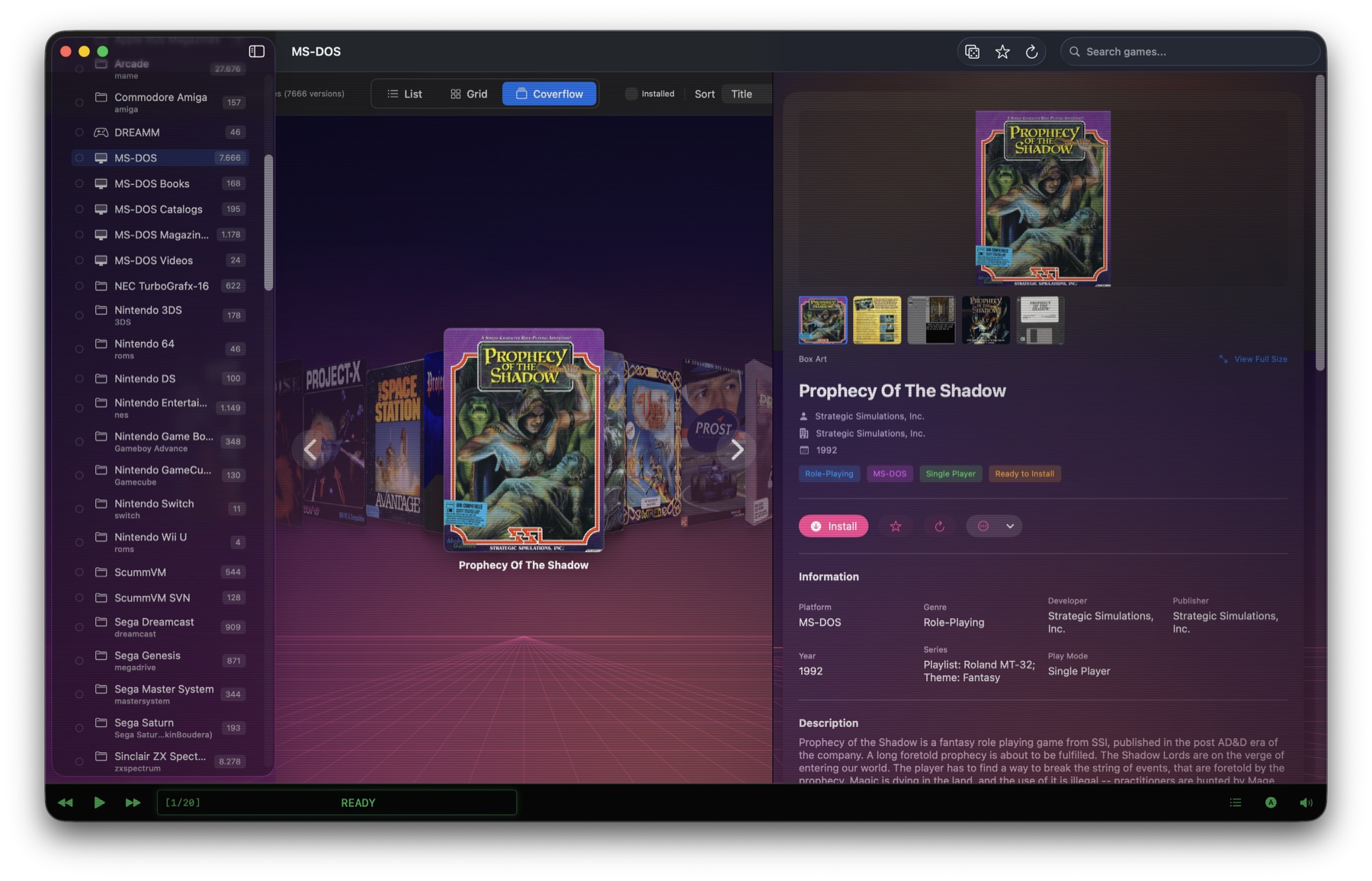
Emulators
Sub-tabs: Emulators (status and paths), Dependencies (bundled tools and optional niceties like MT-32 ROMs), Cores (RetroArch core versions and auto-update), and BIOS Manager.
Services
Sub-tabs: Cloud Sync, ScreenScraper, Achievements (RetroAchievements), Community (fix submission and feedback), WorthyPunks, Stores and Media Service.
Media Service runs the media service (Get Pictures & Details, Look Up All ROMs Again) and shows the last run and each platform’s box art, details and not-found counts. The Settings window can be resized.
Stores chooses which stores show in the library (Steam, GOG, Epic, Amazon, Ubisoft Connect, Mac App Store), holds the Steam Web API key (only needed without Steam on this Mac), and the Windows Games section: the active runtime, Download NostalgiApp Wine, the built-in Game Porting Toolkit, Add Game…, and a reset for a stuck Windows Steam.
Streaming
Install, start and sign in to Sunshine, add the NostalgiApp tile, pair Moonlight devices with their PIN, and check Screen Recording / Local Network / Accessibility permissions. See Play on your TV.
License
Trial status, license activation, subscription status, grace-period indicator, restore/validate button.
Updates
Current version, last-check date, auto-update toggle, frequency (hourly/daily/weekly/monthly), manual "Check Now" button.
About
Version, build, credits to the eXo project and the DREAMM / DOSBox / ScummVM / MAME teams, acknowledgements and license text for all the open-source emulators it uses.
Troubleshooting
"Game doesn't launch"
- Confirm the game is installed (not a Lite download stub) — install it first if needed.
- Check if a community fix already exists — NostalgiApp pulls fixes automatically at launch.
- Use the "It didn't work" button to trigger self-healing; the app will re-parse the game's config and try again.
- If self-healing still fails, click Submit Logs in the error dialog. Logs are anonymized (user paths and hostnames redacted) and uploaded so we can debug.
"Game starts but behaves wrong under DOSBox Staging"
A handful of DOS games were originally built against specific quirks of DOSBox ECE and don't behave correctly on DOSBox Staging — bad timing, broken input, or a black screen. Classic examples: Wolfenstein 3D, Eye of the Beholder, Dune II, some of the SSI Gold Box RPGs.
NostalgiApp already flags many of these in GameLaunchOverrides and will offer you a choice dialog: DOSBox Staging (recommended, native), DOSBox-X (native, the broadest compatibility) or Wine + DOSBox ECE (authentic timing). If the Staging launch looks wrong:
- Close the game.
- Relaunch — when prompted, try DOSBox-X, then Wine + DOSBox ECE.
- For games NostalgiApp doesn't already flag, open the game detail view and switch the emulator override manually.
Wine+ECE works but has limitations: software rendering is forced (so fullscreen can look small or blocky), and mouse capture is less precise than native. If the game is playable but ugly, that's Wine — not a bug in NostalgiApp. No Homebrew needed: Download Runtime in Settings → Emulators → Wine fetches NostalgiApp Wine, and an existing CrossOver or Homebrew Wine works too. Game Porting Toolkit builds (Whisky, Heroic) can’t run DOSBox ECE — if that’s the only Wine on your Mac, NostalgiApp offers to download NostalgiApp Wine or to use DOSBox-X instead. Most ECE games also run natively in DOSBox-X — NostalgiApp offers Try DOSBox-X first.
"Collection path not found"
Usually happens when a collection lives on an external drive that isn't mounted. Reconnect the drive, or choose the collection’s new place with Library → Select Collection Folder… (see Moving your collection to another drive).
Setup never starts (or library stays empty) on a NAS / network share
If your collection lives on a NAS at /Volumes/<share>/… and NostalgiApp shows zero games after pointing at the right folder, macOS’s per-volume privacy gate is almost always the culprit. macOS silently blocks writes to network volumes for apps that haven’t been granted explicit access — and the permission prompt doesn’t always fire automatically (so you never see a dialog to approve, you just see an empty library).
Fix:
- Open System Settings → Privacy & Security → Files and Folders. Find NostalgiApp in the list and make sure Network Volumes is on.
- If NostalgiApp isn’t listed at all, the prompt was never delivered (or was silently denied). Open System Settings → Privacy & Security → Full Disk Access, click the + button, and add NostalgiApp from
/Applications. Full Disk Access bypasses the per-category gates entirely. - Quit and relaunch NostalgiApp. Re-select your collection folder via Library → Select Collection Folder… if the previous attempt left it in a bad state.
Also worth knowing: extracting XODOSMetadata.zip (~5 GB) over a network share is a lot slower than a local SSD — expect several minutes for first setup, especially on Wi-Fi. The progress overlay should update as it goes; if it stays at 0% for > 30 seconds, it’s the permission issue above, not slow IO.
"License not activated on this Mac"
If you've replaced hardware, deactivate the old Mac first (via the LemonSqueezy customer portal in your purchase email), then re-activate on the new Mac. If you're locked out, email [email protected] — we'll reset it.
DOSBox game runs but has no music (MT-32 / General MIDI)
Most eXoDOS games play SoundBlaster effects with no extra setup. But if you pick an MT-32 or Sound Canvas / General MIDI version at launch and the supporting file isn’t installed, the game runs but its music is silent:
- MT-32 needs the Roland ROMs (
MT32_CONTROL.ROM+MT32_PCM.ROM) in~/Library/Application Support/DOSBox Staging/mt32-roms/. - Sound Canvas / General MIDI needs a General MIDI SoundFont — the quickest fix is Settings → Emulators → General MIDI Audio → Install (or drop your own
SoundCanvas.sf2; Sound Canvas ROM files don’t work).
Full step-by-step instructions, including the exact folders and filenames, are in Emulators → MT-32, General MIDI & Sound Canvas music.
Every Win9x game shows "BOOT: Failed to open disk image"
If every eXoWin9x game fails at launch with BOOT: Failed to open disk image in the DOSBox-X terminal (and then drops to a Z:\> prompt), this is a regression in DOSBox-X 2026.01.02. That build's BOOT command can't open the differencing VHD NostalgiApp creates for each launch, even though the preceding IMGMOUNT itself succeeds.
Fix: downgrade DOSBox-X to an earlier release (pre-2026). Either remove the newer dosbox-x.app from /Applications so NostalgiApp falls back to the bundled copy, or install an older build from dosbox-x.com.
ScummVM game shows wrong graphics
Open the game detail view and check the detected ScummVM game ID. Override it from the detail view if needed.
RetroAchievements not tracking
- Make sure RetroArch itself is signed in to RetroAchievements and has achievements enabled (RetroArch → Settings → Achievements). NostalgiApp shows your profile and achievement lists, but the unlocking happens inside RetroArch while the game is running.
- Confirm username + API key are correct in Settings.
- Check that the game's MD5 hash matches RA's database (some platforms fall back to title match which is less reliable).
- Required internet connection during gameplay.
A download or Media Pack item stays at “Waiting for peers”
BitTorrent needs at least one person sharing the file. eXoDOS games almost always start within a minute; Media Pack items and rarely played language versions can take longer. Leave it running — it continues on its own — and check that a firewall or VPN isn’t blocking BitTorrent.
“ScummVM can’t run <game> yet”
eXo lists this game for a ScummVM development build; no official ScummVM release supports it yet. There’s nothing to fix on your side — it will work once ScummVM adds the game.
A Windows game won’t start or shows a black or tiny window
- Read the note on the game’s page first (health check): copy protection and a mismatched runtime are the usual causes.
- Try another runtime with … → Run With: NostalgiApp Wine for DirectX 9–11, a Game Porting Toolkit runtime for DirectX 12, CrossOver when nothing else works.
- Wine’s output for each game is in
~/Library/Logs/NostalgiApp/Wine/.
“<game> needs CrossOver on this Mac”
The game is Windows-only on Steam, and Windows Steam only runs reliably in CrossOver. Install CrossOver (a free trial is available) and press Install again — NostalgiApp sets up Windows Steam for you (details).
Moonlight shows the Mac as offline
Sunshine is running without Screen Recording permission. Open Settings → Streaming → Permissions, click Open Screen Recording Settings, turn Sunshine on, then click Restart Sunshine. If Moonlight can’t find the Mac at all, check Local Network; if you can see the picture but can’t control it, check Accessibility.
Multi-disk DOS game: “press Ctrl-F4 to swap disks” does nothing
Ctrl-F4 is a macOS shortcut. In DOSBox on a Mac, swap disks with Cmd+F4 (on most keyboards Fn+Cmd+F4). NostalgiApp shows this on the game’s page and in the game’s own on-screen hint.
Where are my logs?
~/Library/Logs/NostalgiApp/nostalgi.logYou can also open the Logs folder or copy the full log to the clipboard from the Help menu.
Diagnostic Logging (for hard-to-reproduce issues)
If you're hitting beachballs, unexplained freezes, or slow library loads that the normal log doesn't explain, you can switch on Diagnostic Logging — an opt-in deeper instrumentation that records:
- Main-thread hangs > 250 ms, each with a call-stack sample captured just before the freeze — this points directly at the code path responsible.
- Fine-grained timings around collection loading, image lookups, installation status checks, and other known hotspots.
How to use it:
- Open Settings → General and toggle Enable diagnostic logging (for troubleshooting) on.
- Clear the existing logs first. From the Help menu pick Clear Logs, and in Settings → General → Diagnostic Logging click Clear Diagnostic Log. This keeps the uploaded capture focused on your reproduction and avoids hitting the 2 MB upload cap with unrelated history.
- Use NostalgiApp normally until you reproduce the problem you're reporting. Let it beachball for a few seconds so it's captured.
- Click Help → Upload Logs for Analysis… — the diagnostic output is automatically bundled alongside the regular log.
- Turn the toggle off once you're done. There's a small runtime cost while it's active (the watchdog samples the main thread every 100 ms).
The diagnostic log lives in its own file at ~/Library/Logs/NostalgiApp/diagnostic.log, and you can open it in Finder or clear it straight from the Settings panel.
Still stuck?
Email [email protected] with a description and, ideally, a recent log. We read every message.
Thank You
NostalgiApp wouldn't exist without the work of an enormous community of preservationists, developers, and testers. A few names deserve explicit mention.
Aaron Giles — DREAMM
Aaron built DREAMM, the brilliant native macOS emulator that makes the classic LucasArts adventures playable again on modern hardware, and generously granted us permission to bundle it inside NostalgiApp. Thank you, Aaron.
The eXo team
Every DOS, Windows, ScummVM, DREAMM, and Apple IIGS collection NostalgiApp launches is the product of years of careful curation by the eXo project. Thank you to:
- Retro eXo
- Dutchmagic
- gschmidl
- parricc
- TaraLonger — special thanks for the Win9x work
- …and the rest of the team at retro-exo.com.
Beta testers
A heartfelt thanks to the testers who shaped the app into what it is today by reporting bugs, trying weird edge cases, and putting up with broken builds:
- soegaard
- TruthSeeker
- ChainsawJaguar
- miguelito1979
- Rezza
- Kitaria
Open source
And of course, huge thanks to the teams behind the emulators NostalgiApp uses: DOSBox Staging, DOSBox-X, ScummVM, MAME, 86Box, and Sparkle — plus every RetroArch core author whose work NostalgiApp wraps on the ROM side.